Appearance
Manual Screening
Manual screening lets you check an individual or organization against watchlists, sanctions, and PEP data on demand. Use it for ad-hoc due diligence — for example, onboarding a new customer or reviewing a one-off transaction.
Running a screening
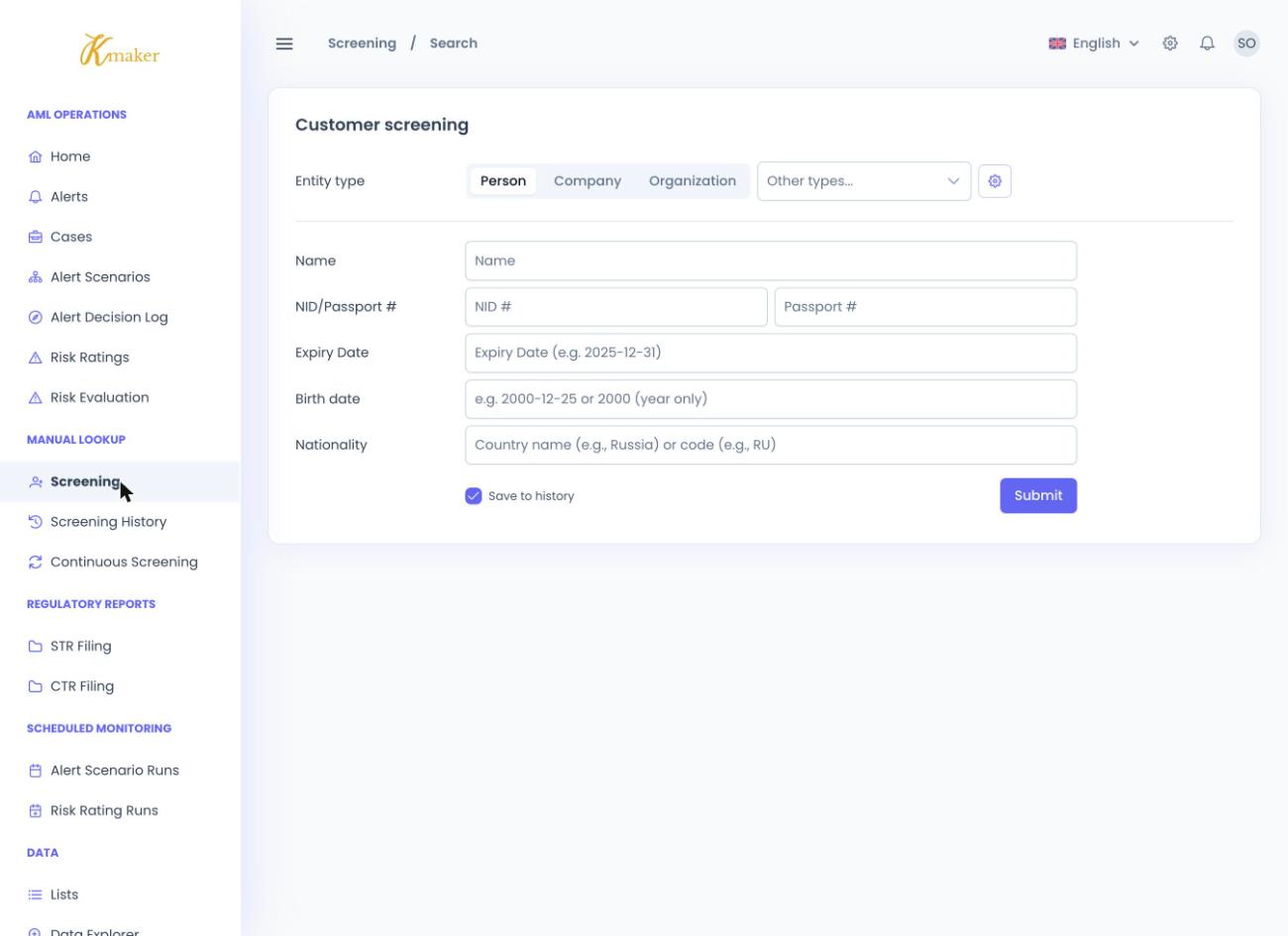
- Go to Manual Lookup → Screening.
- Select the Entity type: Person, Company, Organization, or choose another type from the dropdown.
- Enter the available search criteria:
- Name
- NID / Passport #
- Expiry Date
- Birth date (full date or year only)
- Nationality (country name or code)
- Leave Save to history enabled to keep a record of the search.
- Click Submit.
!!! tip You don't need to fill in every field. A name alone will return results, but adding date of birth or nationality narrows them down and improves match accuracy.
Reviewing results
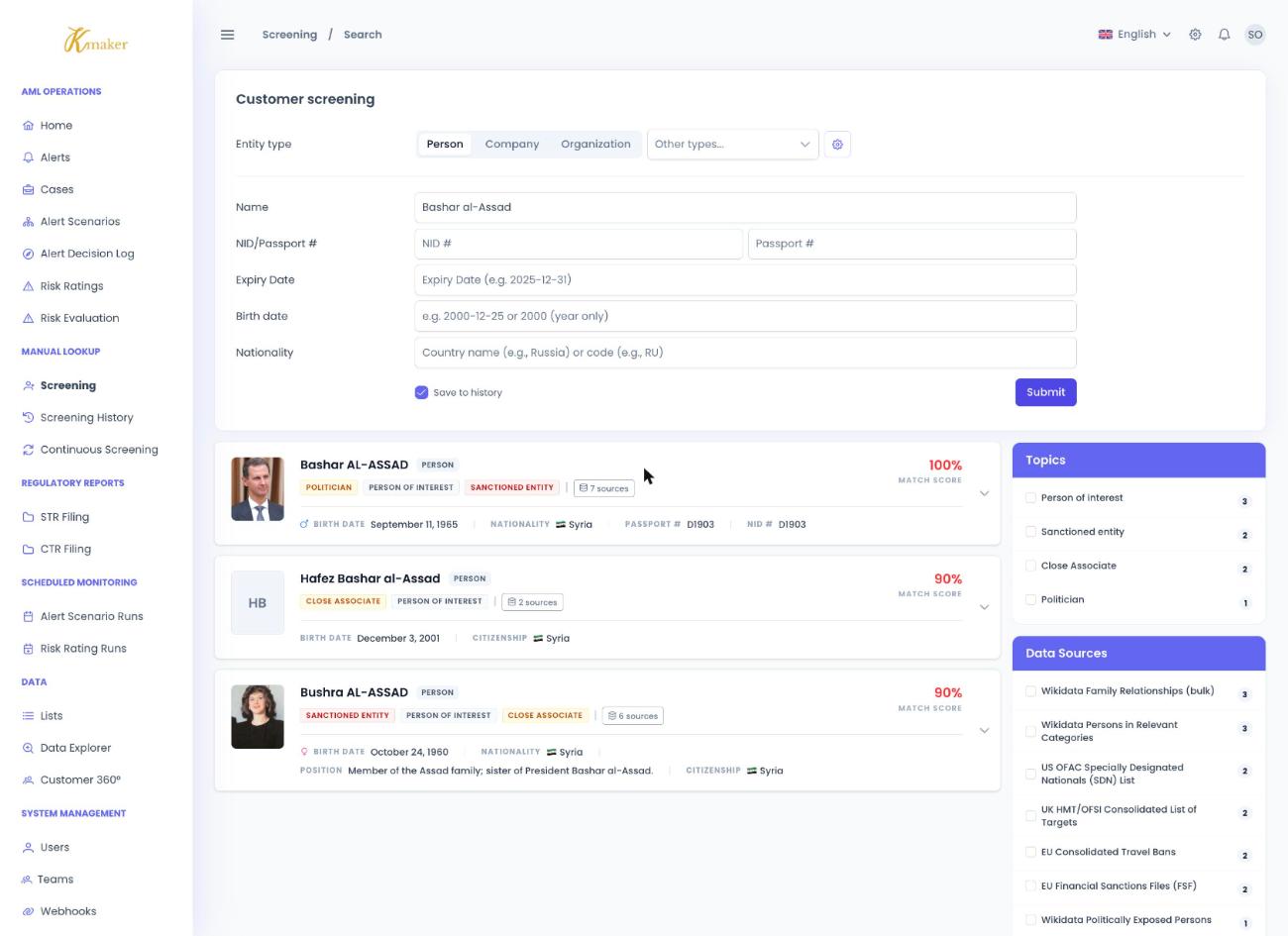
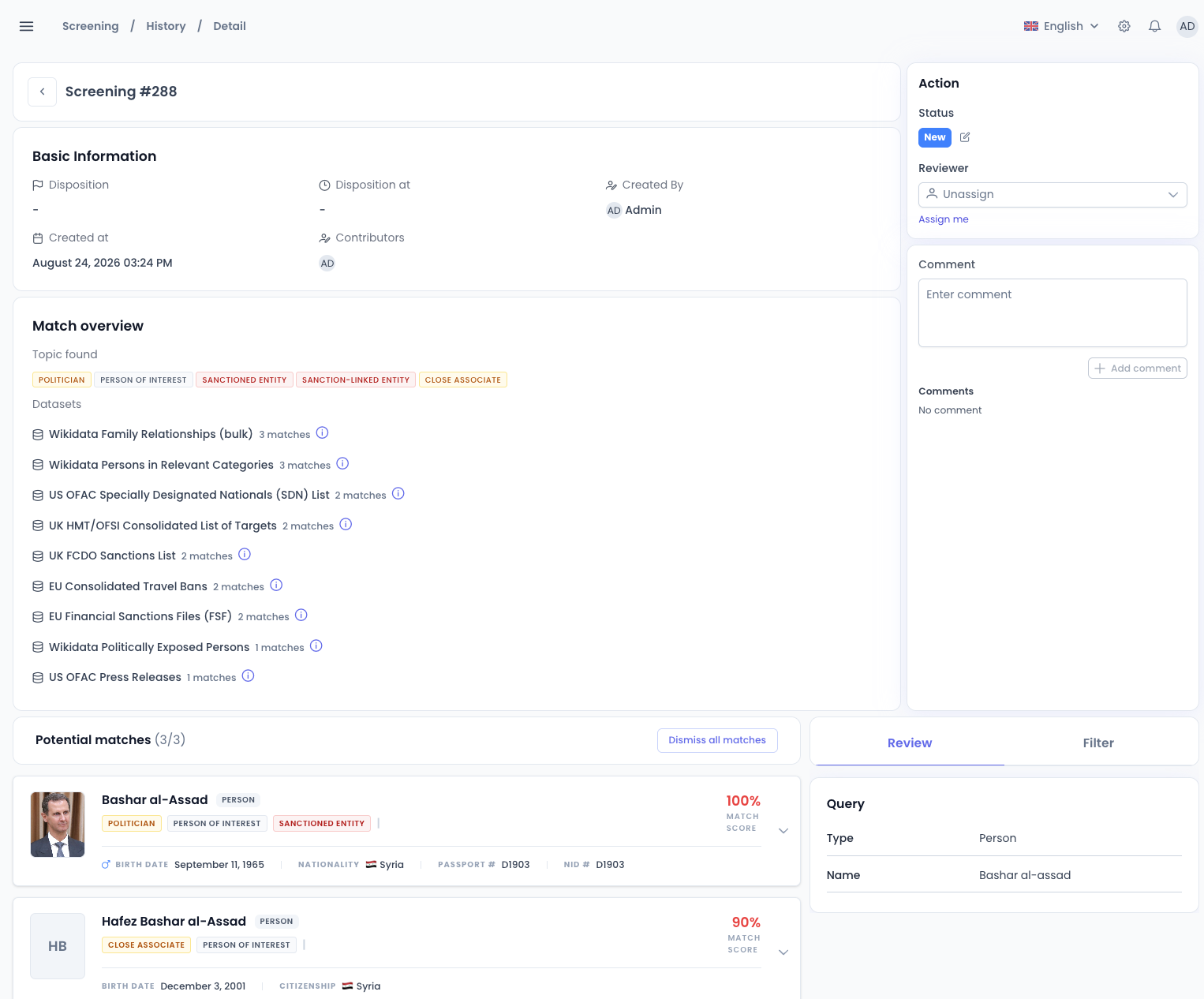
Each potential match is shown with:
- A match score indicating how closely it fits your query.
- Topic tags such as Sanctioned Entity, Politician (PEP), Close Associate, Person of Interest, or Wanted.
- The data sources the record came from.
!!! warning "Sanctioned Entity matches" A Sanctioned Entity tag means the record appears on a sanctions list (for example OFAC SDN, EU, or UK HMT/OFSI). A confirmed true-positive sanctions match is typically a hard stop for onboarding: do not proceed with the customer, escalate to your compliance/MLRO team, and follow your organisation's sanctions procedures. Always confirm it is a genuine match — and not a false positive on a similar name — before taking action.
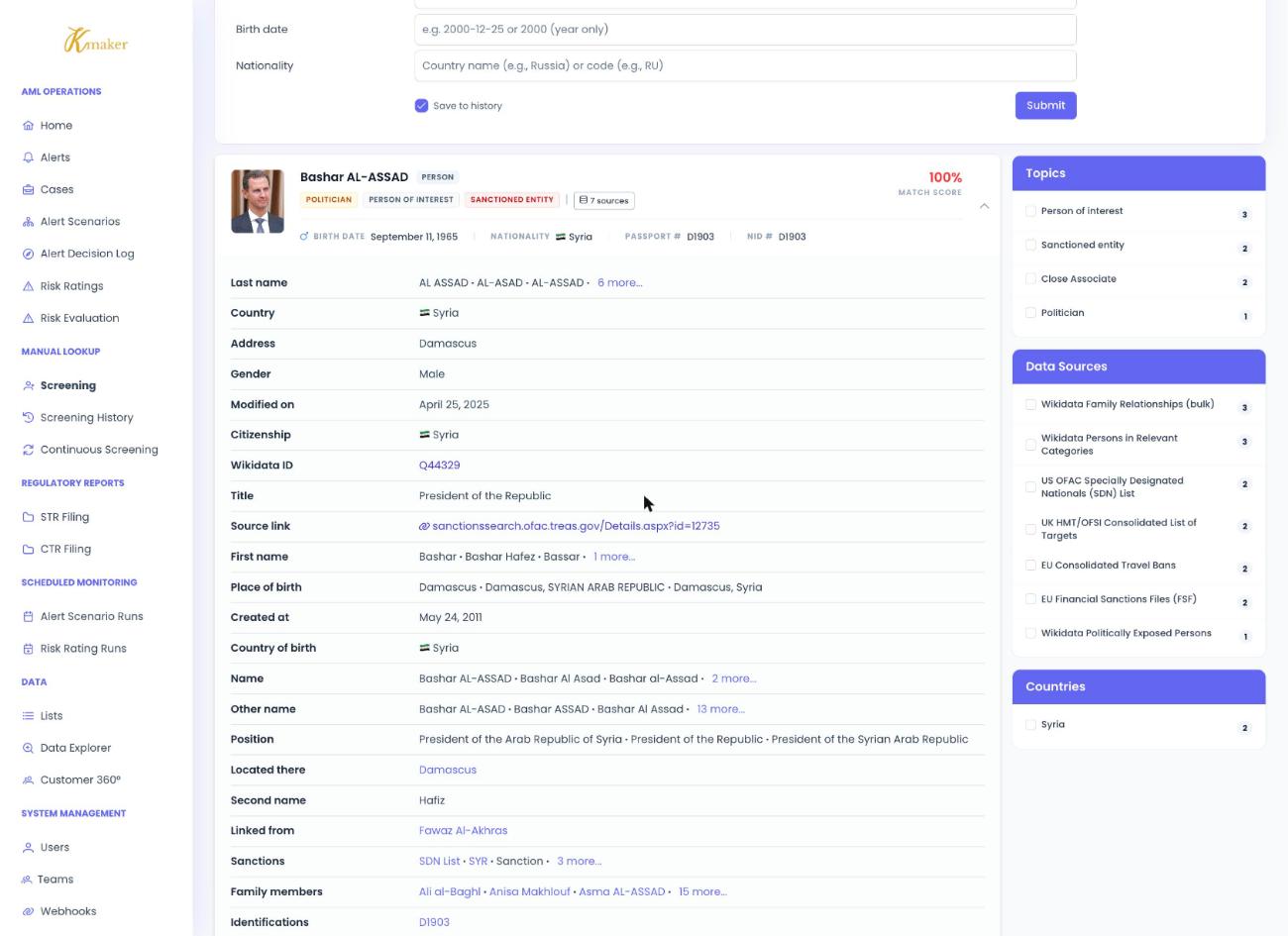
Expand a result to see full details (names and aliases, date and place of birth, addresses, and source links). Use the Topics and Data Sources filters on the right to narrow a large result set.
Dispositioning matches
Open a screening from Screening History to review and resolve it:
- Mark each potential match as Match or No Match.
- Use Dismiss all matches to clear an entire list quickly.
- Add notes in the Comments box and attach supporting files under Evidence Files.
- Assign reviewer for finalize the review and decide disposition
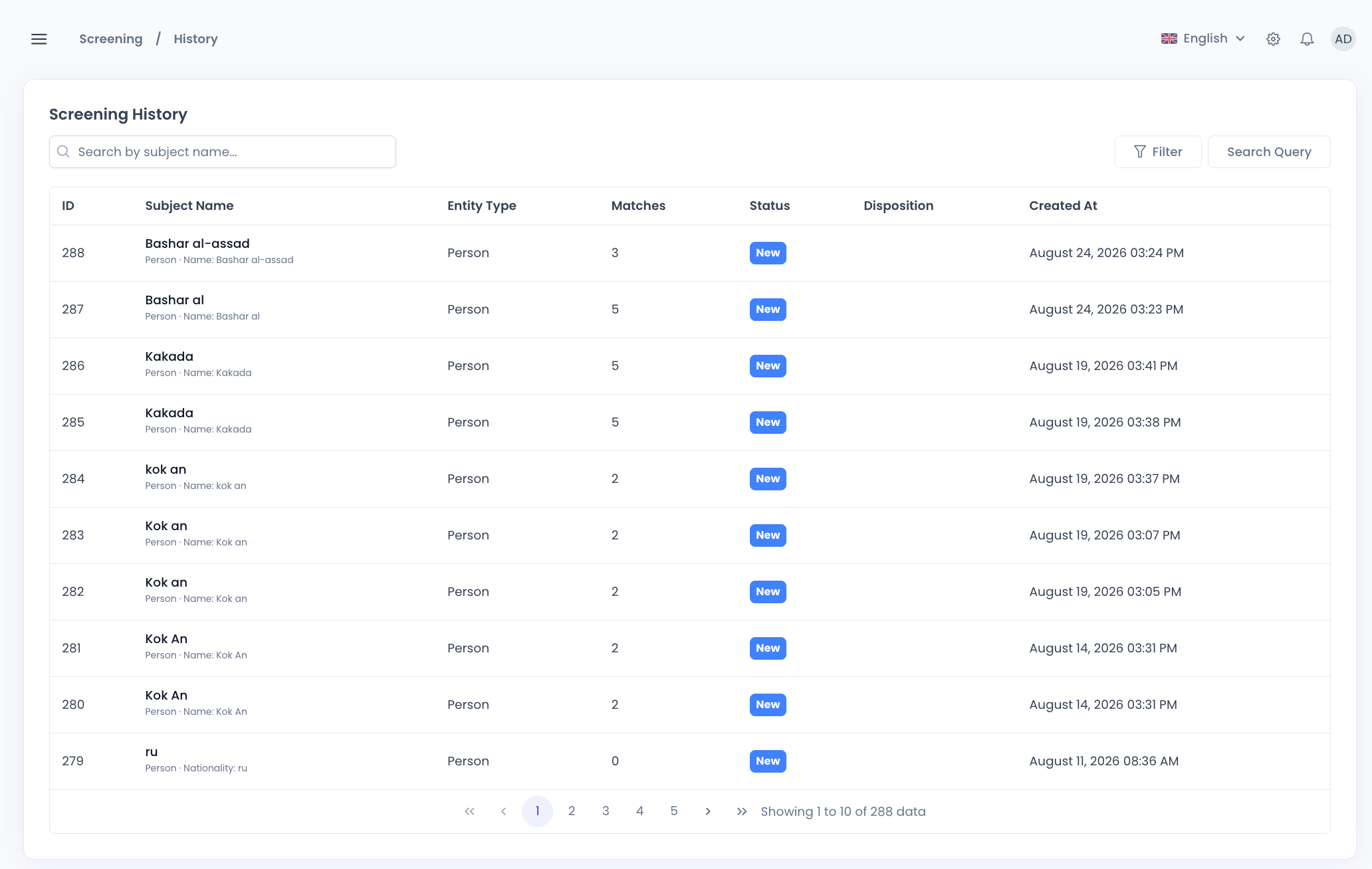
Screening history
Every saved screening appears under Manual Lookup → Screening History, showing the subject name, entity type, number of matches, review status, and the date it was run. Search or filter to find a past screening and open it to continue a review.